



You can now scan printed answer cards in the Wayground for Teachers app
1795186534351
What it does
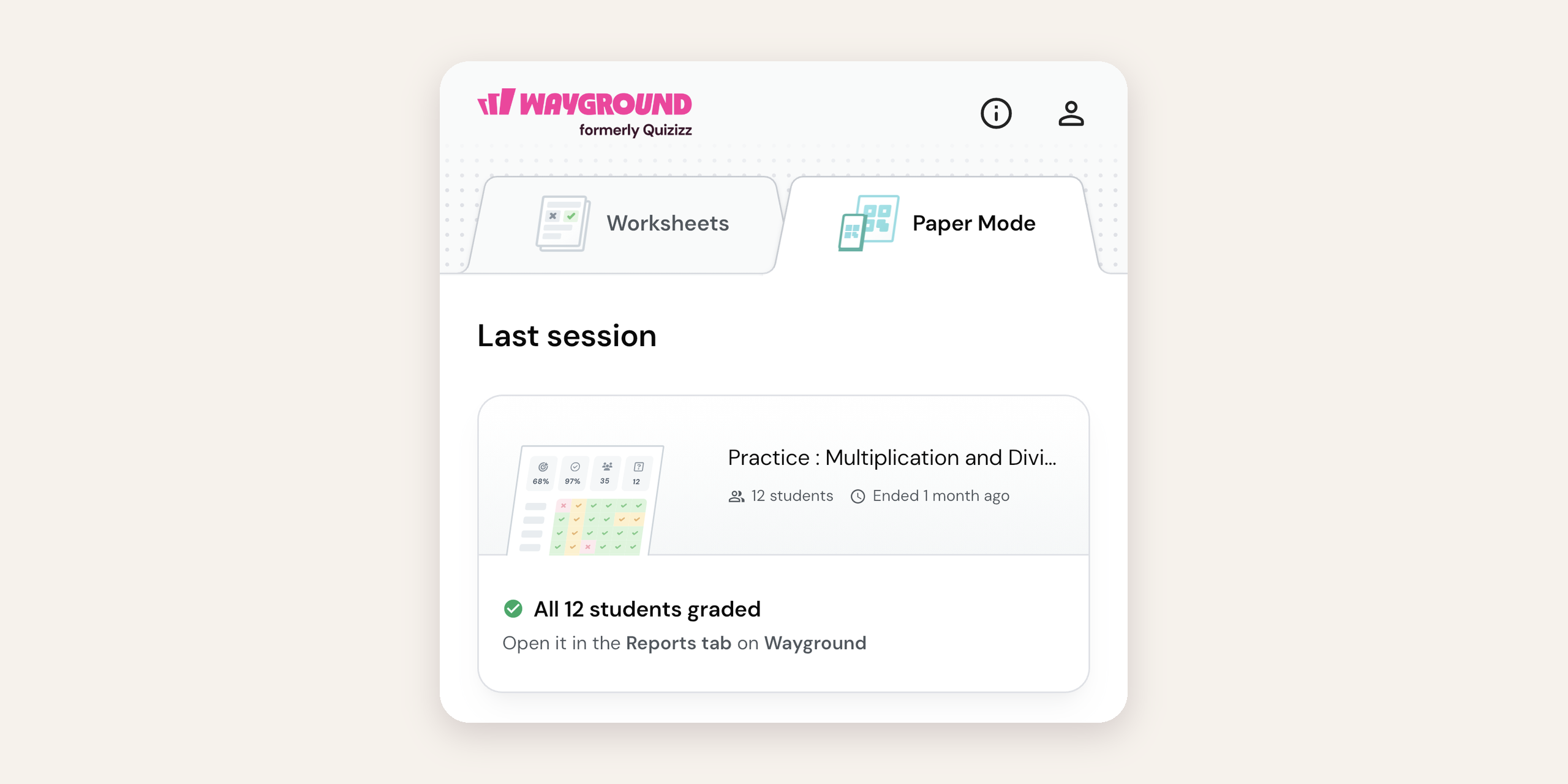
You'll find Paper Mode in a tab next to Worksheets on the app's home screen. In Paper Mode, you project the questions, your students answer by holding up printed answer cards, and your phone scans the whole room at once.
The home screen lists your recent sessions and where each one stands, with a link to each session's report on Wayground. While you scan, your dashboard keeps showing the question and the live count.
In Paper Mode settings, you can print the answer cards in your language. Assign them to a class, and each student keeps the same card.
How it works
- Start a Paper Mode session
- Scan the session's QR code with the Wayground for Teachers app
- Hold up your phone so the whole class is in frame
- Have students turn their card so their answer is at the top
- End the session, and your report is ready on wayground.com
Paper Mode uses only the multiple-choice questions in an assessment, so other question types don't show up. Print the cards double-sided, flipping on the long edge, so the back of each card shows the answer options to the student holding it.
Example in action
A 7th grade math teacher runs a quick multiplication and division check on a day the laptop cart is booked. Her students answer by holding up their cards, and her phone picks up every answer in one pass. After class, she grades the printed homework from the same app.
