



Watch live answers, write private notes, and add passages to your Presentations
1788767748471
What changed
Three things changed in Presentations.
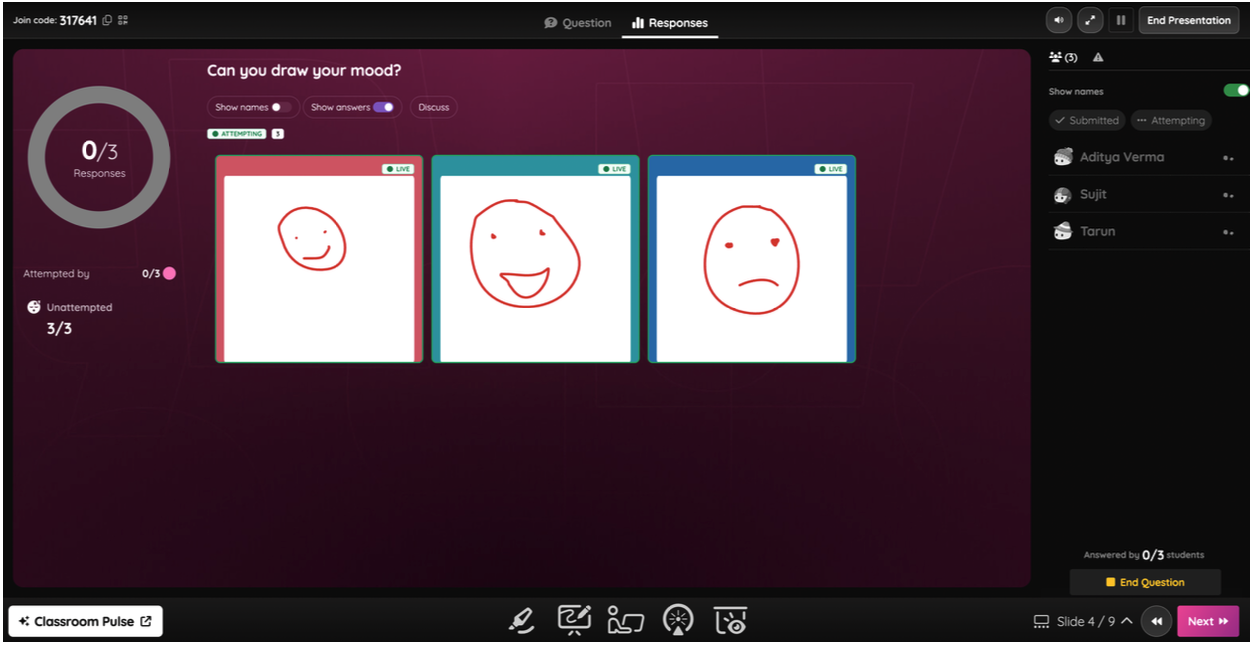
The Responses tab now shows open-ended and draw answers as your students write them, so a half-finished paragraph or a drawing in progress appears on your screen while your student is still working. You can see who's submitted and who's still attempting, turn names on to match work to students, and pull up a response to talk through with the class without closing the question.
Slide notes let you park your talking points on the slide itself while you're building. During the session, they appear under the slide on your screen, and your students never see them.
Presentations also now support the Passage question type, so a reading passage and the questions attached to it run inside the same session as the rest of your slides.
How it works
For live responses:
Open the Responses tab while an Open-ended or Draw question is running
Watch answers appear on cards marked LIVE as your students work
Switch between Submitted and Attempting to see who's finished
Turn on Show names to match each response to a student
Select Discuss to talk through a response while the question is still open
For slide notes:
Open a slide in the Presentation editor
Type in the Slide notes field below the slide
Run the session, and your notes appear under the slide on your screen
Live responses cover Open-ended and Draw questions. Passage questions are added to a Presentation the same way you add any other question.
Example in action
A 7th-grade ELA teacher builds a Presentation on figurative language around a short story passage, including an open-ended question asking students what the storm represents. On the metaphor slide, she leaves herself a note about the song lyric her third period argued over last week. During the session, she watches the answers come in on the Responses tab, spots three students writing about weather rather than mood, and brings one up to discuss while the rest are still typing.
What did you think about this update?


Leave your name and email so that we can reply to you (both fields are optional):
