



Passages now support tables, equations, and media
1785842471674
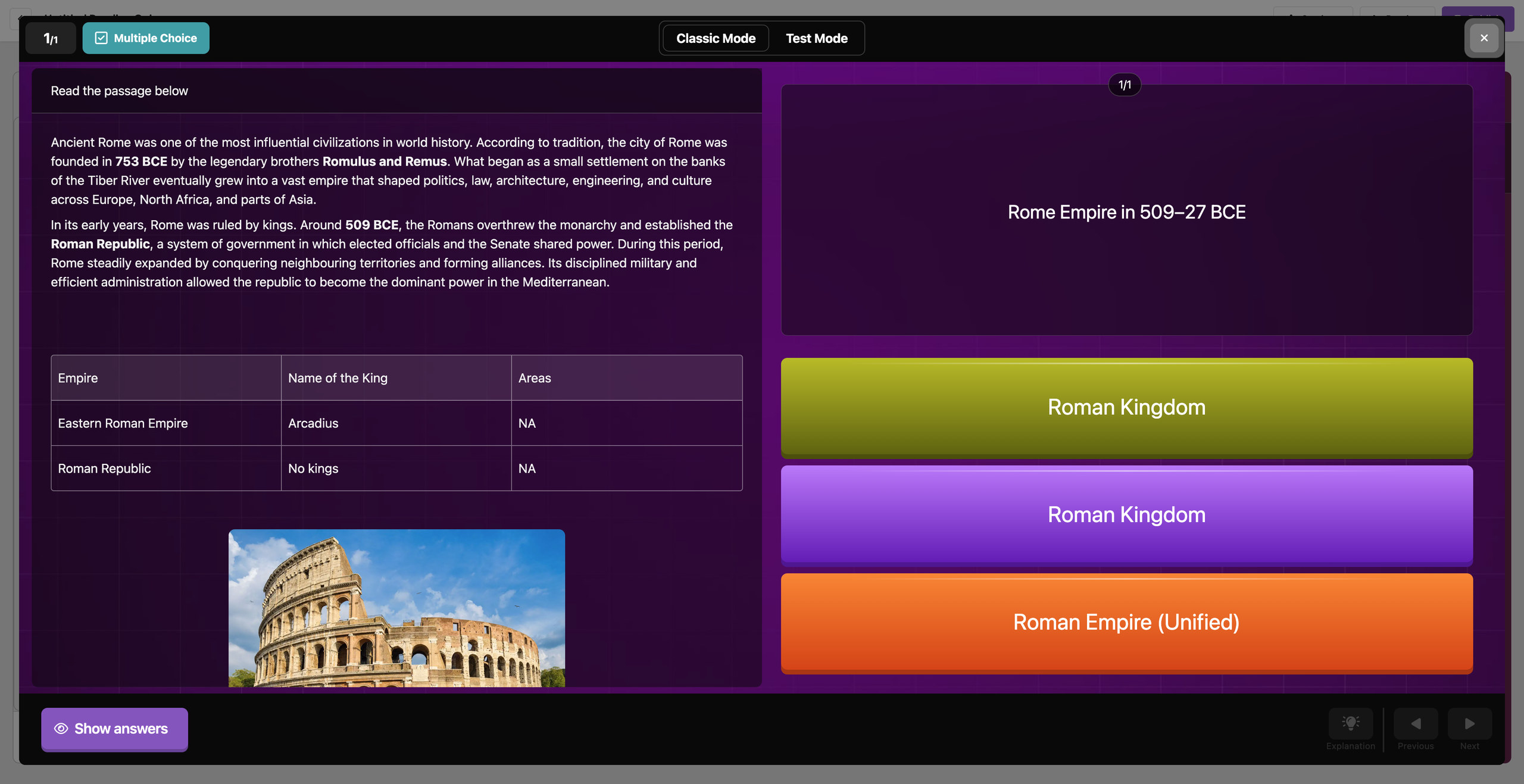
What it does
When you build a passage yourself, you can now turn on Advanced Formatting — the same rich-text toolbar you already use when writing questions. It lets you add tables, resizable images, equations, audio, video, and links inside a passage.
What you build is what your students see — the table stays a table, and the image stays where you put it. Your existing passages stay exactly as they are until you open one and turn Advanced Formatting on.
How it works
Start a new passage
Choose Add text & media manually
Turn on Advanced Formatting in the toolbar
Add tables, images, equations, audio, video, or links
Advanced Formatting works in the manual option only. Generate with AI, Upload PDF, and Embed website keep the standard passage formatting.
Example in action
Your 7th grade world history class is starting a unit on ancient Rome. You build one passage that holds a few paragraphs on the fall of the republic, a table of emperors, and a photo of the Colosseum. Your students read the text, check the table, and answer questions that point at both. The questions you wanted to ask about that table are now questions you can actually ask.
What did you think about this update?


Leave your name and email so that we can reply to you (both fields are optional):
