



Share a custom report with one person or an entire team
1791463021765
What it does
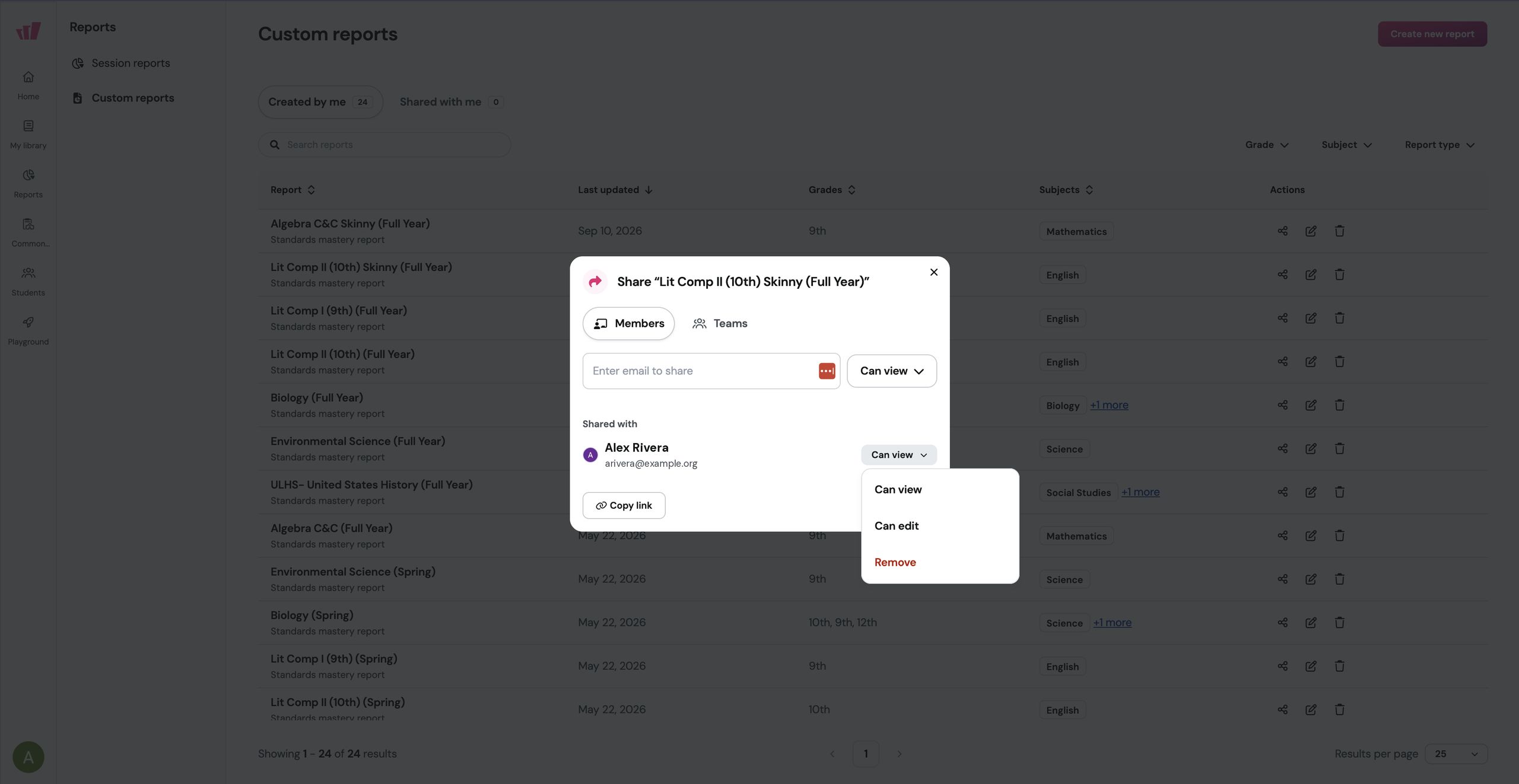
You can now share any custom report you build with other people in your organization. Add someone by email, or pick a team and give all its members access at once, like a grade-level math team or a school's ELA department.
Everyone you've shared with is listed under Shared with, along with their access level, so you can switch someone from view to edit or remove them later. Reports other people share with you land in the Shared with me tab on the Custom reports page, next to the ones you built yourself.
How it works
Open Custom reports and click the share icon on the report you want to share
Stay on Members to share with one person, or switch to Teams to share with a group
Enter an email address, or select the teams you want
Set access to Can view or Can edit
You can also share from inside a report, using the Share button at the top right.
Example in action
Your district runs one full-year standards mastery report for 9th grade algebra. You share it with the 9th Grade Math Team so all 30 teachers open the same view, and you give the math curriculum lead edit access. At Thursday's PLC the report's already open, and the lead can update it herself when the team asks for a change.
What did you think about this update?


Leave your name and email so that we can reply to you (both fields are optional):
