



See usage for each student and each session in Usage Analytics
1794922174528
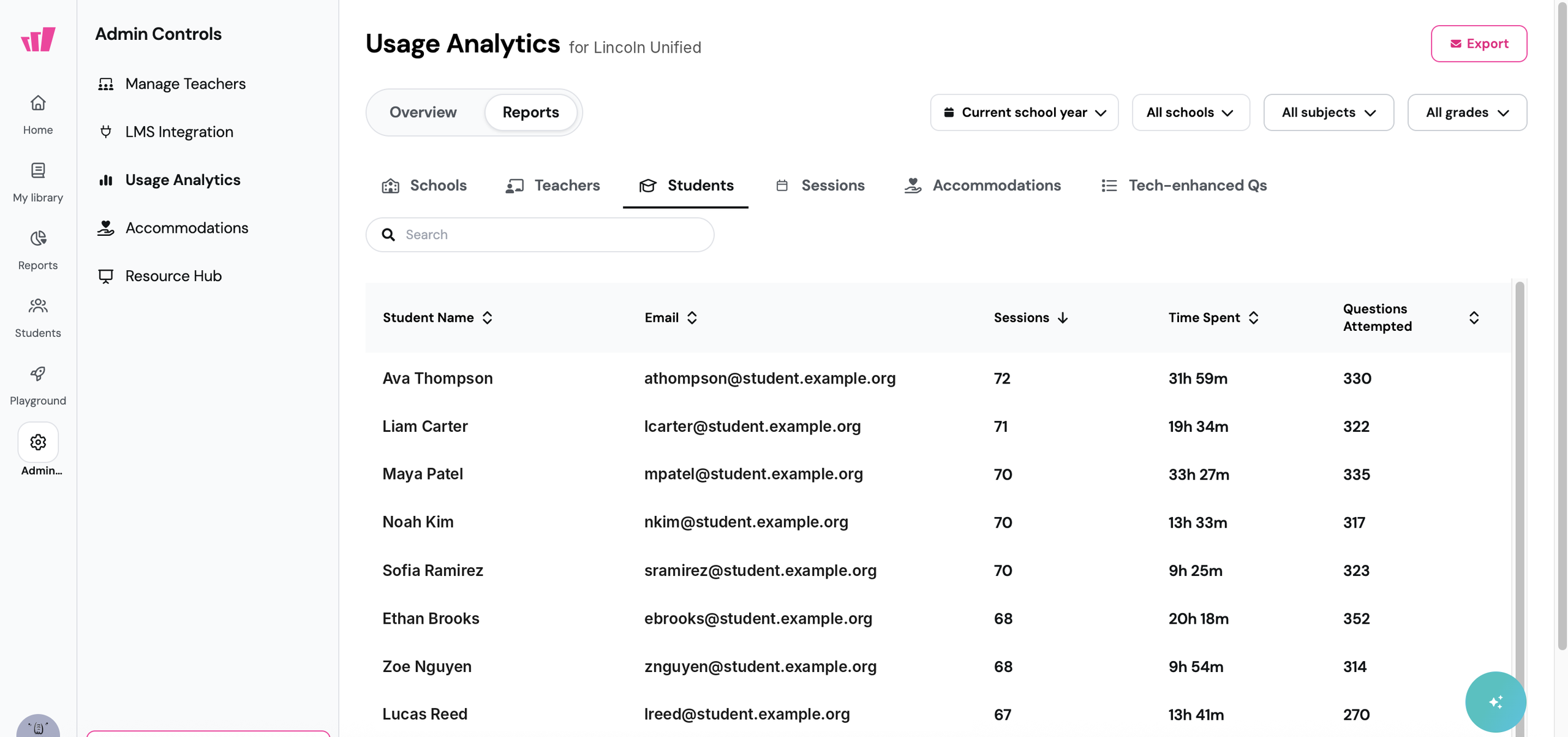
What it does
If you're a school or district admin, you'll find two new tabs under Reports in Usage Analytics. On Students, you see each student's sessions, time spent, questions attempted, formats used, and accommodations. On Sessions, you see every session with its date, teacher, school, format, and the number of students and responses.
How it works
Open Admin from the left sidebar and select Usage Analytics
Switch from Overview to Reports
Select the Students or Sessions tab
Narrow the list with the school year, school, subject, and grade filters, or use the search bar
Example in action
A district instructional technology coordinator owes her grant funder a mid-year update on three middle schools. She pulls session counts and time spent for every student at those schools. She adds the dates and teachers behind each session to the appendix.
