



Choose the Microsoft Teams grading category each assignment counts toward
1788773092731
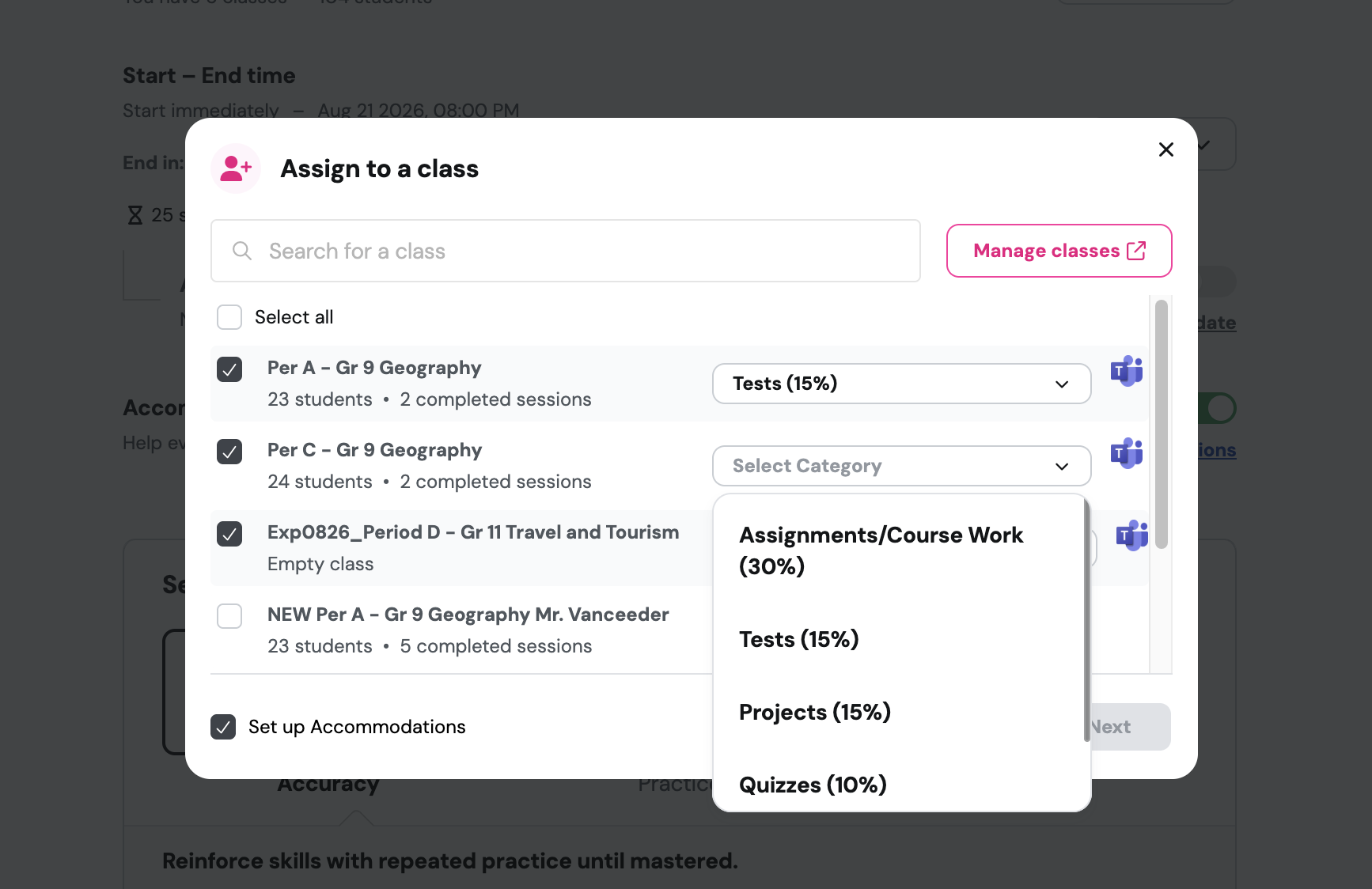
What it does
If your Microsoft Teams class uses weighted grading categories, those categories now appear when you assign. Each Teams class has its own dropdown, and every option shows its weight, so you can see how much the grade counts before you choose.
Because the category is set per class, the same resource can be assigned to tests in one section and to coursework in another. If your class doesn't use weighted categories, nothing changes, and you assign as you always have.
How it works
Click Assign to a class and select the classes you're assigning to
Open Select Category on a Teams class row and choose the category you want
Assign, and the grade syncs into that category in your Teams gradebook
The dropdown appears only for classes connected to Microsoft Teams that already have weighted grading categories enabled.
Example in action
You teach three sections of 7th-grade science, and your Teams gradebook weights tests at 15% and coursework at 30%. You assign the same end-of-unit review to all three, marking it as tests for the two sections taking it as a graded check and as coursework for the section still practicing. Each grade lands in the category you selected, and the weighted averages in Teams are correct.
What did you think about this update?


Leave your name and email so that we can reply to you (both fields are optional):
