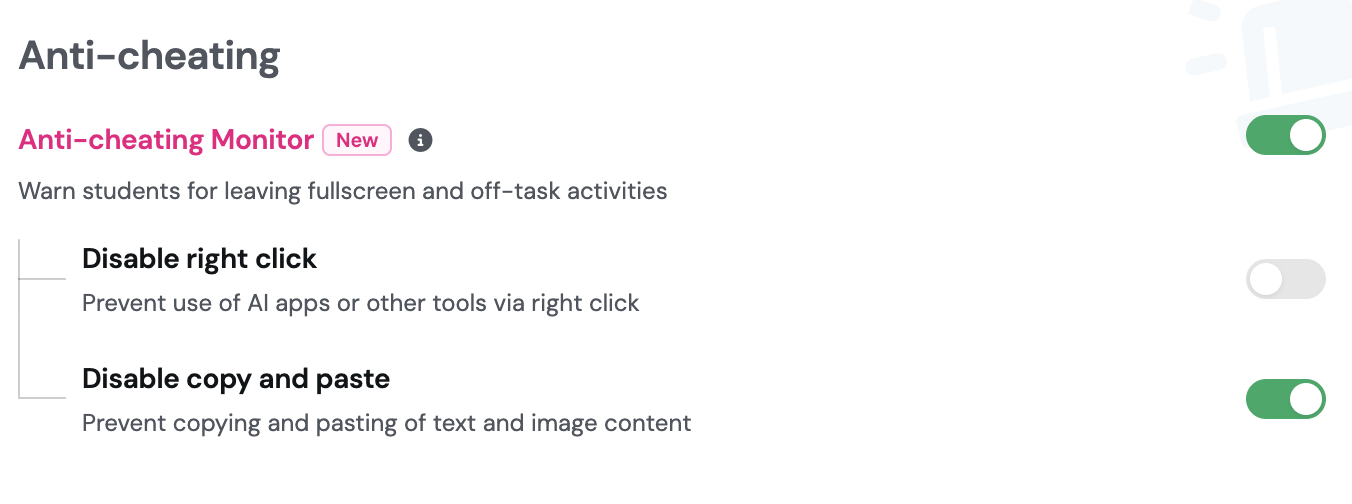
Disable copy and paste is a new setting that blocks students from copying text and image out of a session or pasting into it. It is designed for those moments when you need cleaner assessment data and fewer “How did everyone get the exact same wording?” surprises.
How it works
Check settings before starting the session
Find the Anti-Cheating section and toggle it on
Toggle on Disable copy and paste
Start or assign your session as usual
Example in action
A 7th grade science teacher is running a vocabulary check and knows students tend to copy definitions straight from their digital notebooks or pull text from a webpage. Before assigning, she toggles on “Disable copy and paste” in the Anti-cheating settings. Students have to recall and type their own definitions — and the responses she gets back actually reflect what they know.
She spends less time sorting out copied answers and more time trusting what the data is actually telling her.