



Attach reference materials directly to a Common Assessment
1775133041498
What it does
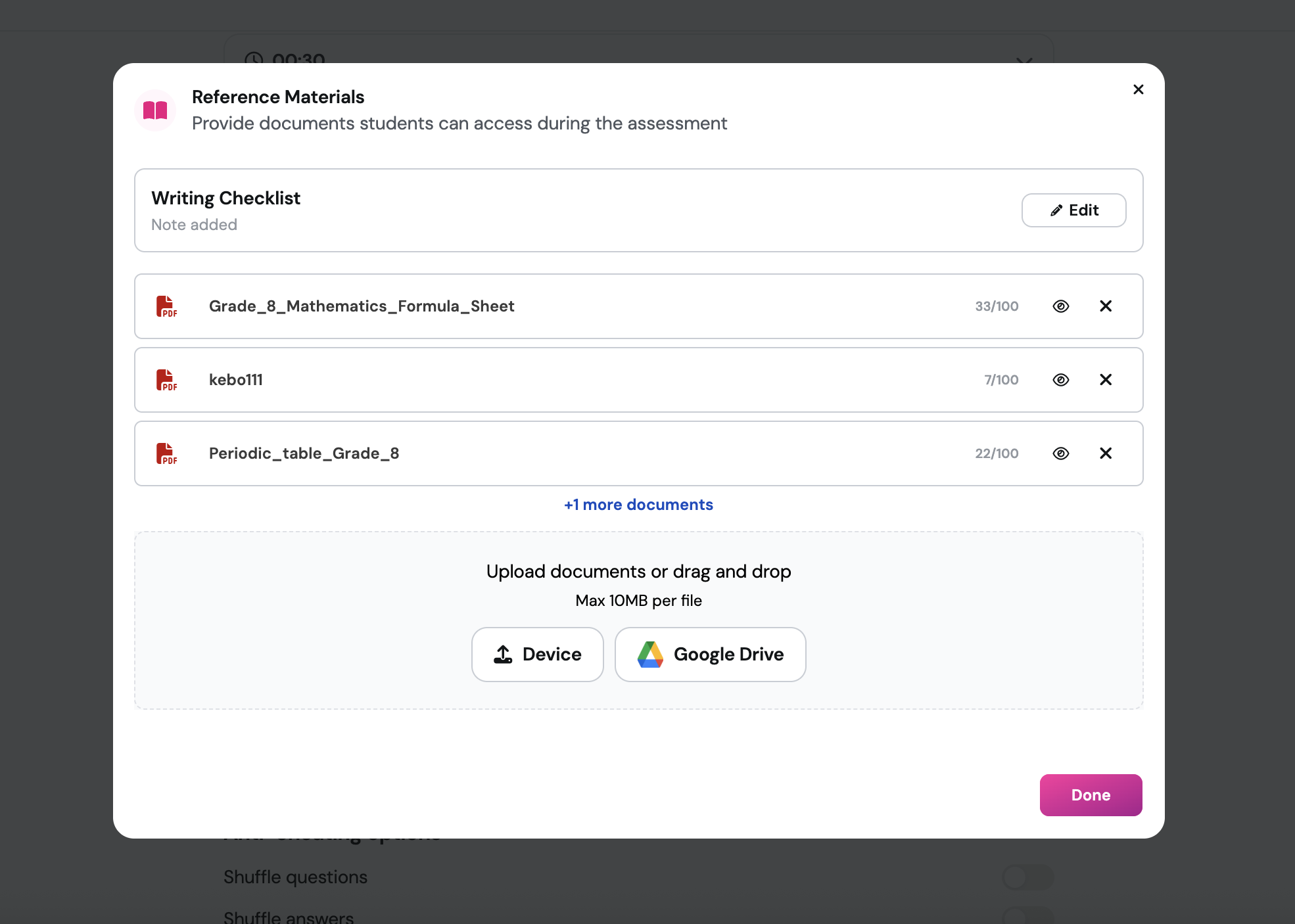
Reference Materials lets Common Assessment creators attach notes and documents directly to an assessment. Students access these through a persistent panel during the session — no paper, no broken links, no separate tabs to manage.
Here is what you can attach:
Teacher-authored notes written in a rich text editor, with support for bold, italic, tables, and math notation
Uploaded documents including PDFs, Google Docs, and Google Slides — all automatically converted to PDF at import
A few things worth knowing:
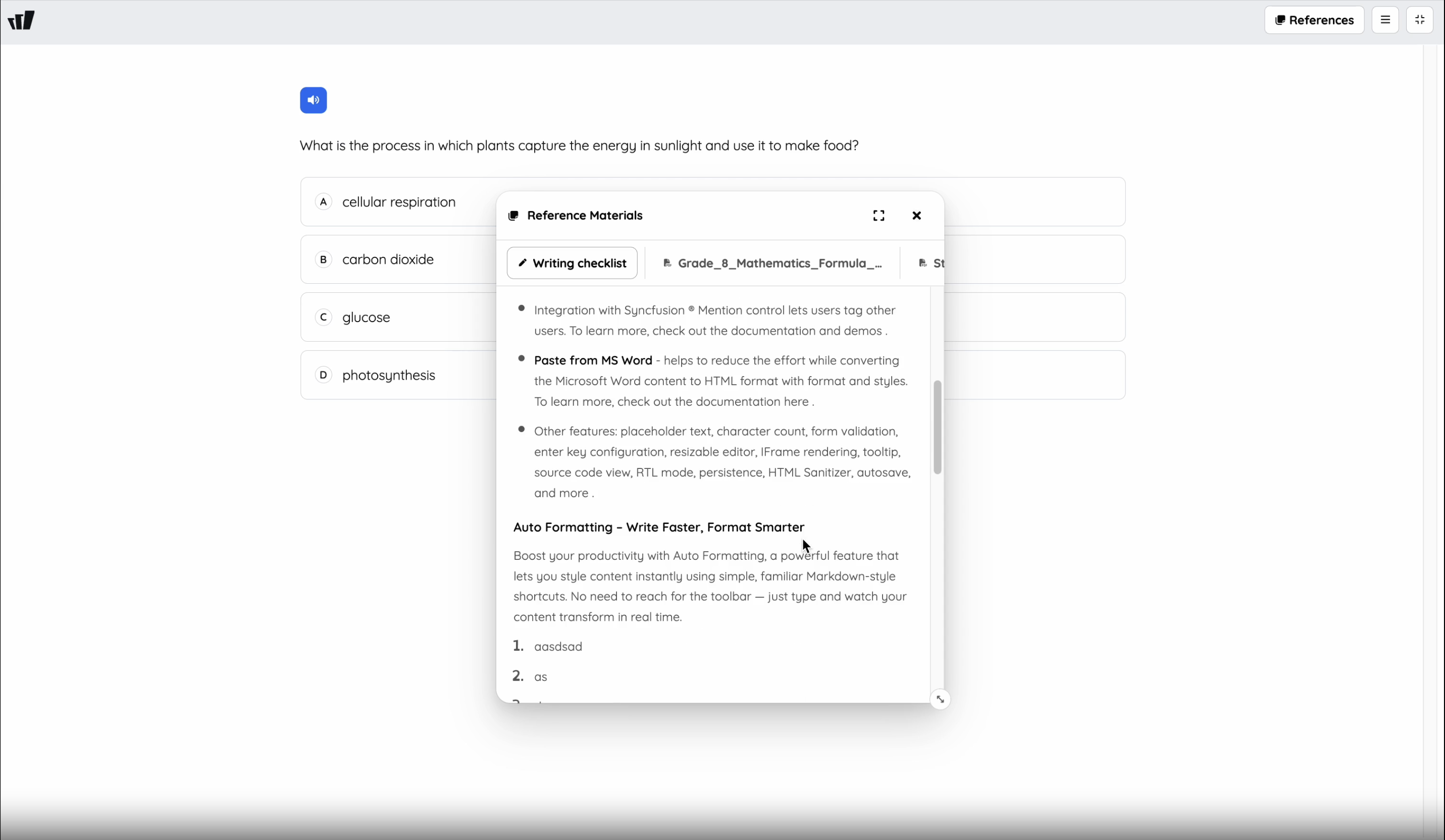
Students open the reference panel using a dedicated button in the session header, separate from the Tools dropdown
The panel stays available across every question in the session. On desktop, it appears as a floating, resizable window. On tablet, it opens as a bottom overlay
Notes lock server-side at the moment the assessment starts — no edits can be made once students are in
Accommodations are built in: the Notes tab supports dyslexia font, adjustable font size, and font spacing
All students under the Common Assessment receive the same reference materials — no IEP or 504 required
How it works
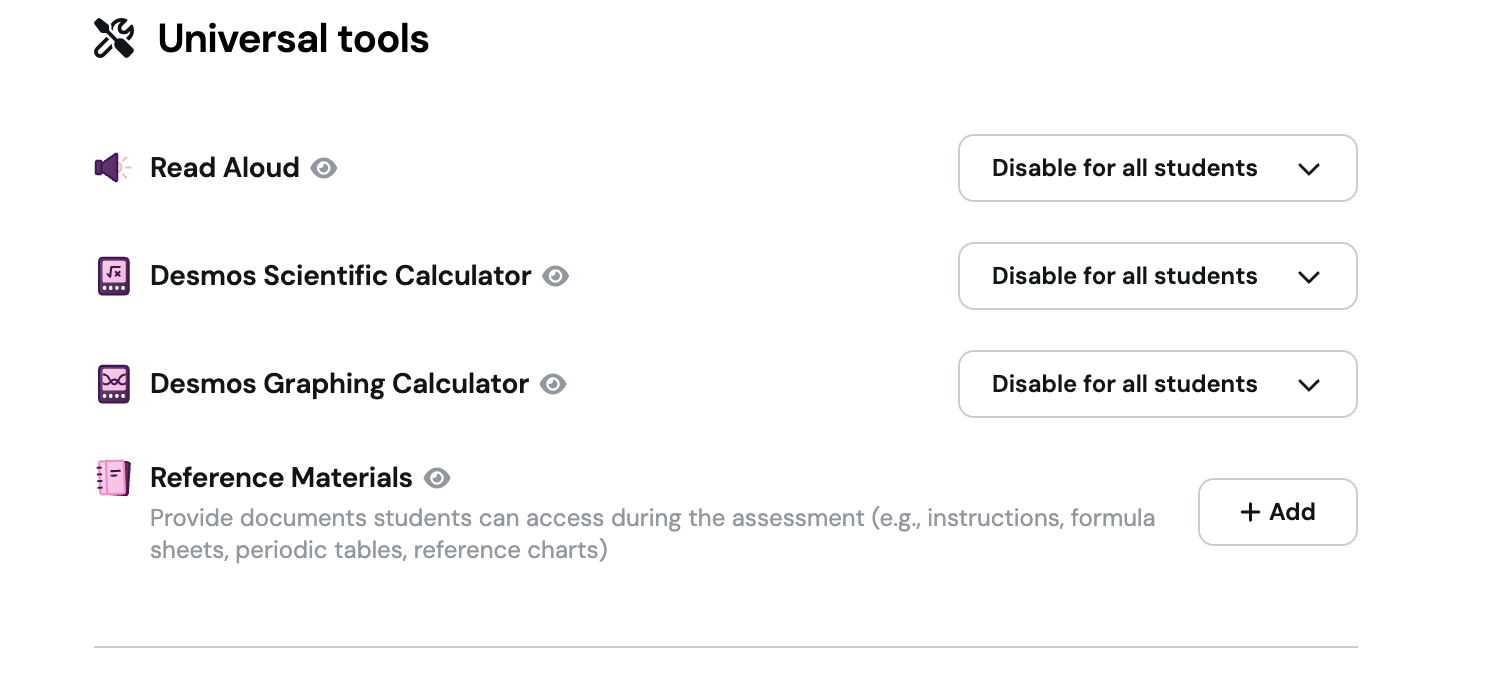
While creating a Common Assessment, go to Settings and find the Reference Materials option under Universal Tools.
Select the type of content you want to attach — a teacher-authored note or an uploaded document.
Write your note using the rich text editor, or upload a PDF, Google Doc, or Google Slides file.
Save your changes. Materials lock automatically when the Common Assessment goes live.
During the session, students click the reference button in the header to open the panel at any point.
Example in action
Your district is running a Common Assessment for 7th grade math. Instead of printing a formula sheet and hoping every student keeps track of it, you attach a teacher-authored note with the relevant formulas — including math notation — directly to the Common Assessment. When students start, they see the reference button in the header, open the panel, and keep it alongside their work the entire time. Every student gets the same materials, and you go into the assessment day knowing nothing will get lost.
Student experience
What did you think about this update?


Leave your name and email so that we can reply to you (both fields are optional):
