



Add multiple blanks to a single fill-in-the-blank question
1775132633131
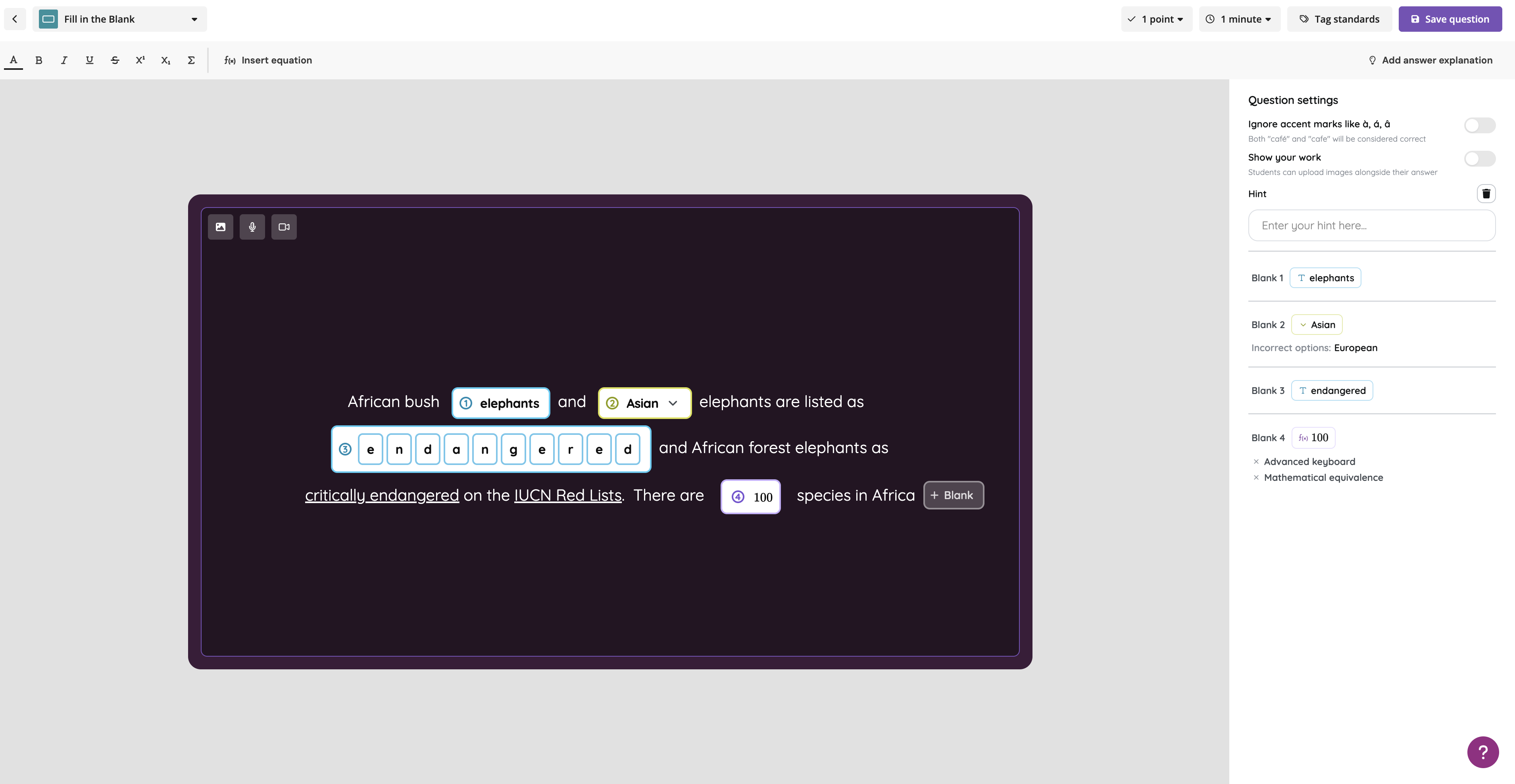
What it does
Fill-in-the-Blank questions just got a significant upgrade. You can now add multiple blanks within a single question, and each blank can be a different type:
Text blanks for open-ended written responses
Math blanks for numerical and equation-based answers
Dropdown blanks for guided selection from a set of options
This means one question can now assess multiple parts of a concept at once — closer to the format your students will see on state-level assessments. Partial grading and accommodations are supported as well, so your data stays accurate and fair for every student.
How it works
Create or edit a resource and add a new Fill-in-the-Blank question.
Type your question stem and place your cursor where you want the first blank.
Select the blank type — Text, Math, or Dropdown — from the options that appear.
Repeat to add as many blanks as your question needs.
Set correct answers for each blank and publish your resource.
Example in action
Your 6th grade science class is reviewing the water cycle. Instead of asking one isolated question per concept, you write a single sentence: "Water moves from the surface to the atmosphere through ___ and returns as ___." You set the first blank as a Text blank and the second as a Dropdown with answer choices. Students complete both parts in one question, and partial grading gives you a clear picture of exactly where each student's understanding stands.
What did you think about this update?


Leave your name and email so that we can reply to you (both fields are optional):
