



Add Custom Tags to Assessment Questions
1781257887201
What it does
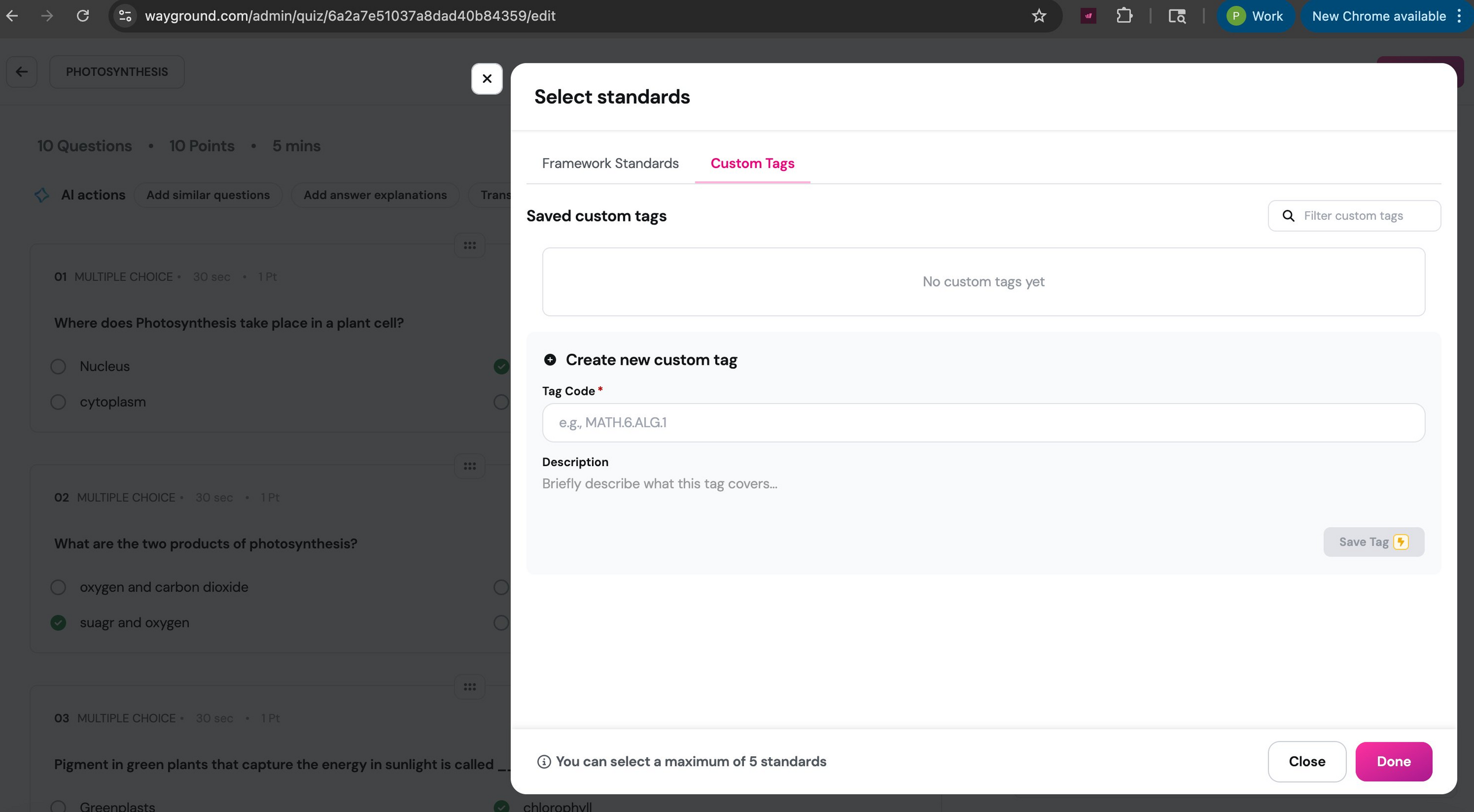
Custom Tags is a new tab in the Select Standards window of the assessment editor. It lets you create and save your own labels (skill codes, unit tags, or any internal tracking system) and apply them to individual questions, right alongside framework standards.
If your school uses codes like MATH.6.ALG.1 or SCI.CELLS.3 that don't live in a state framework, you can now tag questions with those codes directly. Tags save to your account, so you can reuse them across any assessment. Framework standards and custom tags share a combined limit of 5 per question.
How it works
Open a resource in the assessment editor and select a question
Open the Select Standards window
Click the Custom Tags tab (next to Framework Standards)
Enter a tag code and an optional description, then click Save Tag
Select one or more saved tags to apply them to the question
As your tag list grows, use the filter box to search by code. You can also remove any saved tag from your account using the trash icon.
Example in action
Your 6th grade science team uses a shared skill taxonomy that maps to your school's unit structure, not the state framework. You tag each question in your photosynthesis assessment with codes like SCI.6.PHOTO.1 and SCI.6.PHOTO.2. The next time you build an assessment, you filter by those codes and pull in the questions you need without scrolling through your full question bank.
What did you think about this update?


Leave your name and email so that we can reply to you (both fields are optional):
